A Beginners Guide To Krita
Tuesday, June 3, 2025
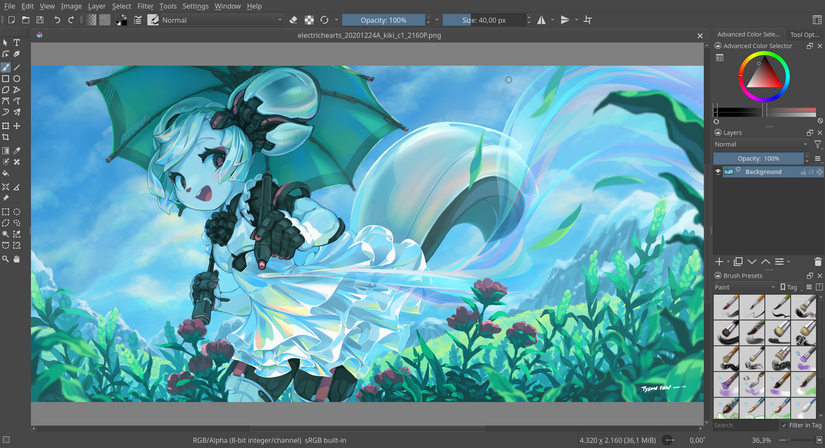
Brushes
David Revoy's Brushes
Instructions are in the "How to Install" link. These are the only brushes I use, they work flawlessly are free and suited for every need I've ever come across.
How To Install
https://www.davidrevoy.com/article953/krita-brushes-2023-01-bundle
Support David Reroy (He seriously deserves it)
https://www.davidrevoy.com/static3/become-my-patron
Settings
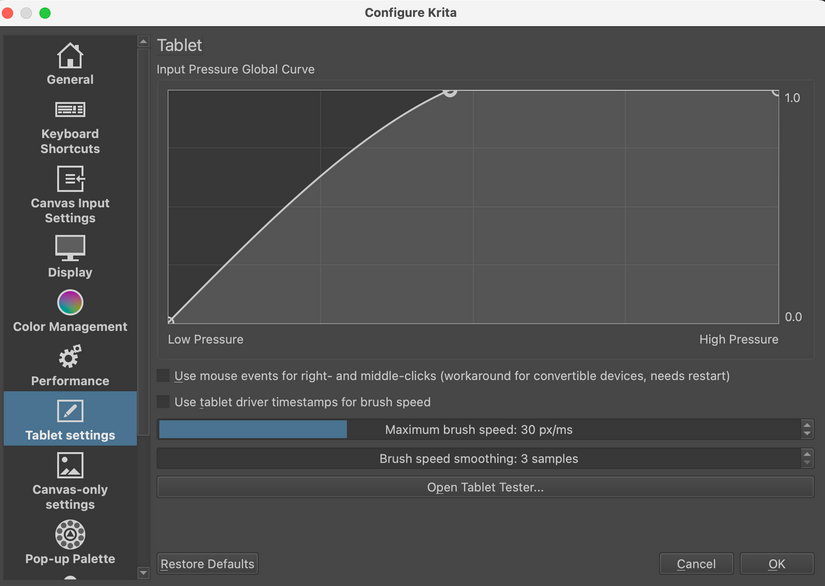
Tablet Settigns (Pen Preassure)
This might not be necessary for everyone, but if unable to change in your computer’s settings, It’s very easy to change this in Krita’s Settings instead. Pen pressure is more subjective, but you’ll want to do some tests and adjust the curve to somewhere that feels comfortable to you.
My rule of thumb is to move the curve enough so that you don't have to apply very much force when painting. The less preassure you need to paint, the longer your nibs will last and the easier it will be on your hands and wrists.
Display
Canvas Background
- Settings > Configure Krita > Display > Canvas Decorations > Canvas Border Color > #141414 or #2d2d2d
Canvas Input Settings
Input Profile
- Photoshop Compatible
- if you're coming from Photoshop this will help a lot. If you're not, you can skip this step.

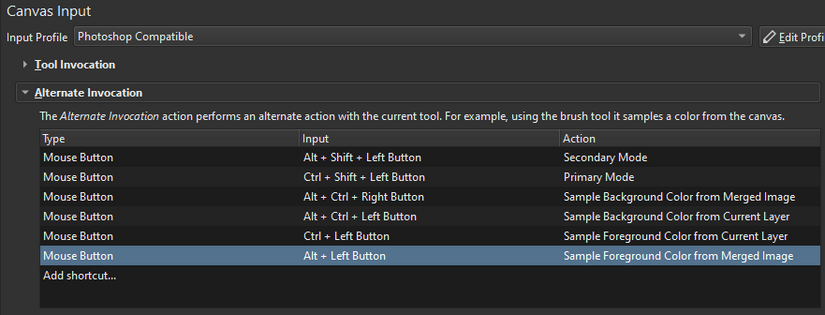
Alt Invocation
- **Sample Foreground Color From Merged Image**
- Type: Mouse Button
- Alt + Left Button
Pan Canvas
- Pan Mode >>> Space + Left Button
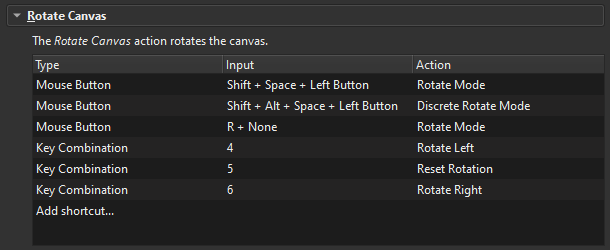
Rotate Canvas
- Rotate Left > 4
- Reset Rotation > 5
- Rotate Right > 6
- Rotate Mode > R + None
Zoom
- Zoom Out > Mouse Wheel Down
- Zoom In > Mouse Wheel Up
- Zoom to 100% > 9
- Fit To View > 0
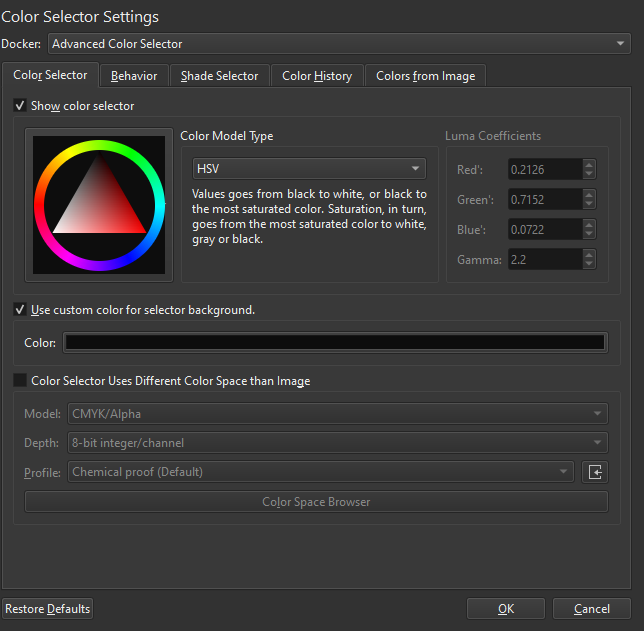
Color Selector Settings
- Advanced Color Selector
- HSV
- Shade Selector > Gradiant
Plugins
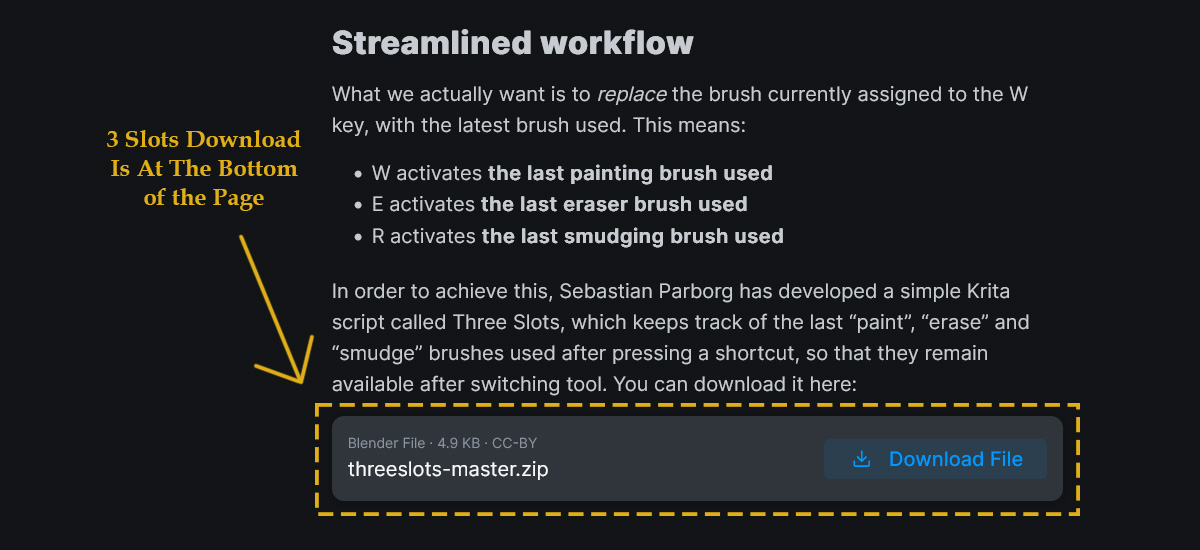
Separate Brush and Eraser (3 Slots Plugin)
How To Install
- Download the Plugin
- Tools > Scripts > Import Python Plugin From File
- find the .zip file and press OK.
- Restart Krita.
3 Slots Settings
- Eraser >>> Change to E
- Brush 1 >>> Change to B
Optional Plugins and Info
How To Install Plugins
https://docs.krita.org/en/user_manual/python_scripting/install_custom_python_plugin.html
Modernized Krita UI Design
https://github.com/veryprofessionaldodo/Krita-UI-Redesign
Digital Painting Workflow
https://studio.blender.org/blog/custom-digital-painting-workflow-in-krita/